
Behind the Screen - A Blog
WordPress 7: What to Know Before Updating Your Site (2026 Guide)
Updated May 2026 · 8 min read
The short version: WordPress 7 is out. It's the biggest release since Gutenberg landed in 2018. The admin looks different, AI is now baked in, and one headline feature didn't make it. Here's what it means for your website. And if you're a local business owner in Teesside or beyond, here's what I'll be doing before I touch the Update button on your site.
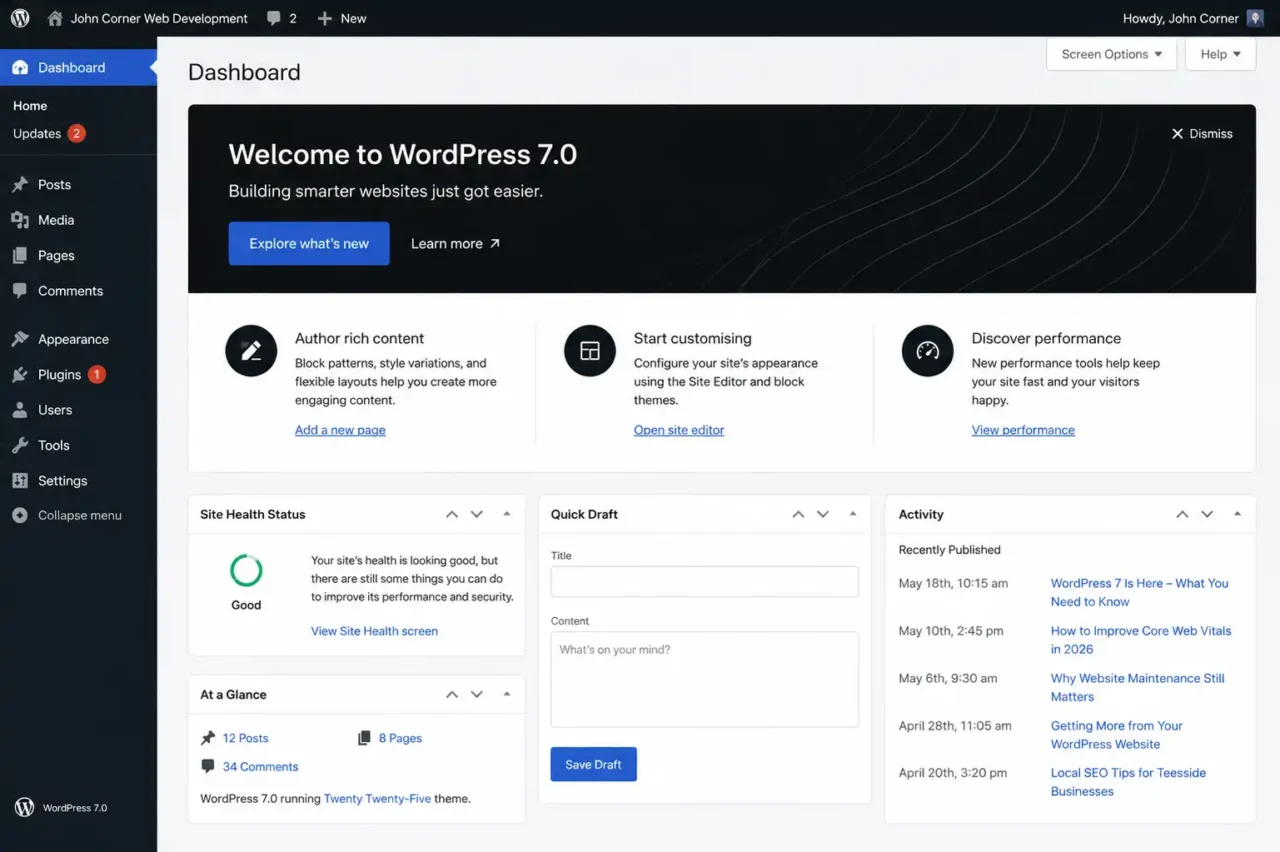
I've been building websites on WordPress since the mid-2000s. In that time, I've lived through the death of the Classic Editor, the chaos of Gutenberg's launch, and more "this update broke my site" panic calls than I care to remember.
WordPress 7 is a big one. Not "big" in the breathless tech-blog sense where every release gets called revolutionary. Actually big. The kind of release where a Stockton florist, a Middlesbrough solicitor, and a Redcar gym each have a slightly different thing to think about before they hit update.
So let's walk through it properly: what changed, what got dropped, what it means if you're running Divi or WooCommerce, and whether you should update now or wait a fortnight.
What Is WordPress 7? (And Why Does the Version Number Matter?)
First, the number. WordPress going from 6.9 to 7.0 isn't like Windows releasing a new operating system. The codebase is continuous. There's no architectural break, no "everything's different now." It's a milestone marker, signalling the official start of Phase 3 of the Gutenberg project. Phase 3 is about collaboration and workflows: teams working together on the same site, AI tools built in rather than bolted on, a backend that feels like modern software rather than a 2012 admin panel.
The release was originally planned for 9 April at WordCamp Asia in Mumbai. It got pushed to 20 May because the core team hit a serious problem with real-time collaboration (more on that in a moment). The fact that they delayed rather than shipped something broken is, genuinely, a good sign. It's the kind of decision that doesn't get made unless the team cares about the product.
The headline feature that didn't make it
Real-time collaboration (Google Docs-style, multiple people editing the same post simultaneously) was the centrepiece of the WordPress 7 announcement. It didn't ship. On 8 May, two weeks before release, it was pulled from the build.
The technical reason: the collaboration system was saving sync data using post meta, which was inadvertently disabling WordPress query caches sitewide whenever someone opened the block editor. The fix required building a new database table from scratch. That's not a quick patch, it's a proper architectural change. Rather than rush it, they cut it. It's expected in WordPress 7.1, due August 2026.
For most of my clients (a bakery in Stockton, a property firm on Teesside, a trades business in Hartlepool) real-time co-editing wasn't something they were waiting on anyway. But if you're running a news site or a content team where multiple editors work in the same CMS, this is the feature to watch for in the autumn.
What WordPress 7 Actually Delivers
Here's everything that did ship, explained in terms of what it means for your site rather than just what it says in the changelog.
The admin redesign (DataViews): your clients will notice this
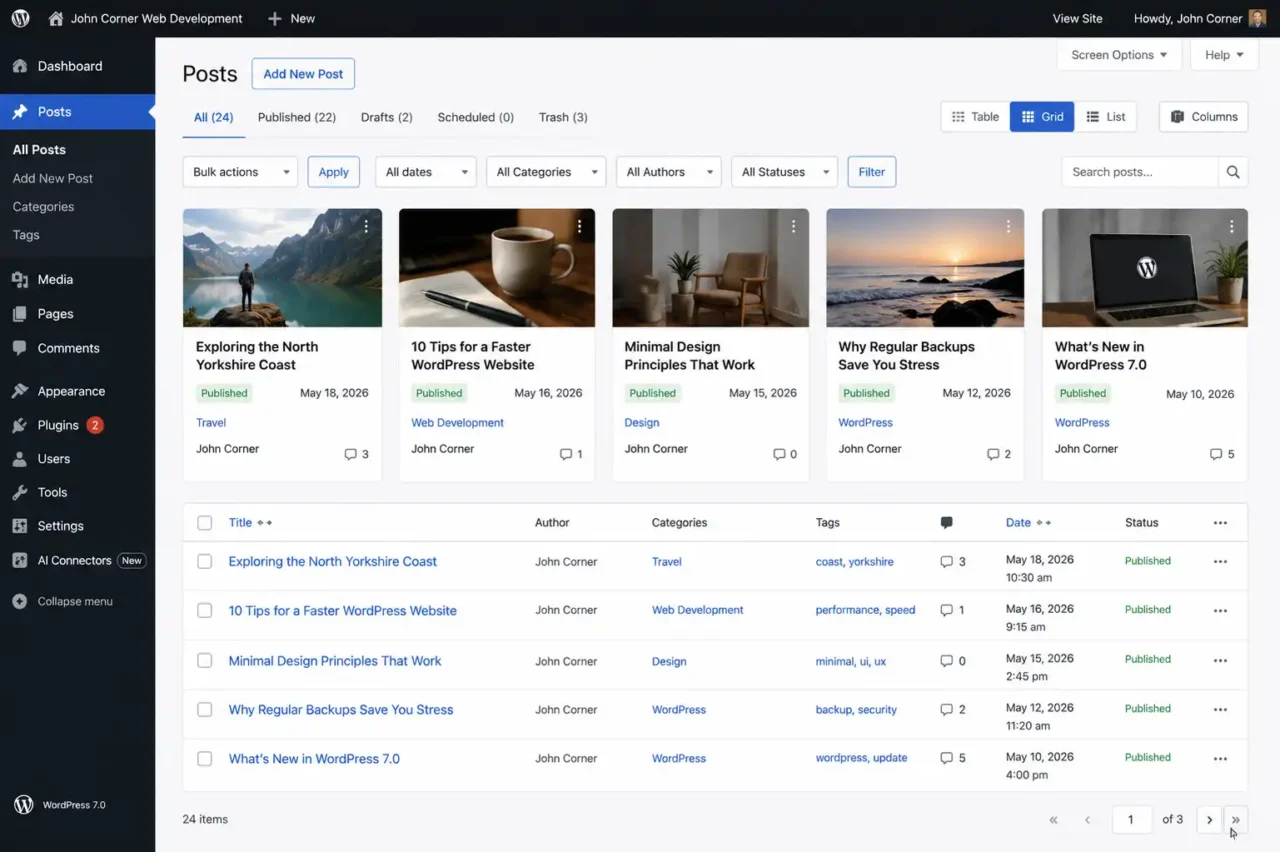
The most immediately visible change in WordPress 7 is the admin interface. The Posts, Pages, and Media screens have been completely rebuilt with something called DataViews: a React-based interface that replaces the old PHP-rendered list tables that have looked the same since roughly 2008.
What does that mean in practice? The Posts screen no longer does a full page reload when you filter by category or status. You can toggle between table view, grid view, and list view. Bulk editing is instant. It looks and behaves like a modern web app.
Here's what I know from experience: the first time a client logs into their site after this update, they're going to message me. Not because anything is broken, but because the screen they've used every week for three years looks different. If I update a client's site without warning them first, that message will arrive at 8 pm on a Tuesday, wondering if something's gone wrong.
My approach: I send a two-line message before updating any client site. "I'm updating your WordPress this week. The Posts and Pages area will look slightly different; it's faster and more modern, and everything on your website stays exactly the same." That's it. Two lines save a support call.
The plugin risk flag: Any plugin that adds custom columns, filters, or bulk actions to the Posts, Pages, or Media screens may behave unexpectedly after this update. DataViews rebuilt the underlying DOM structure that those plugins hook into. If you've got an admin column plugin or a custom post status manager, test it on staging before updating live.
AI built into WordPress core: what it actually means
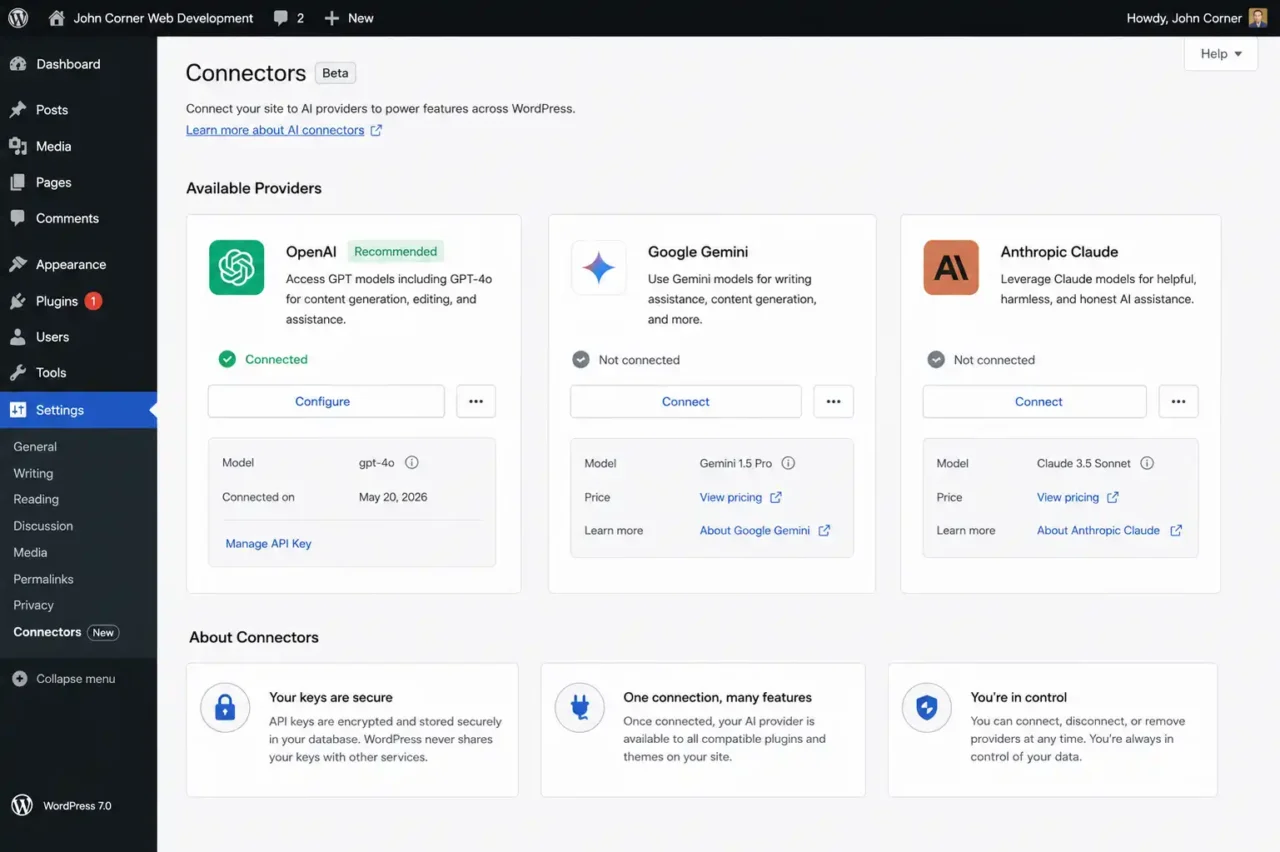
WordPress 7 ships with something called the AI Connectors screen, found under Settings > Connectors in your wp-admin. At launch, three AI providers are available: OpenAI (ChatGPT), Google Gemini, and Anthropic Claude.
Here's the important thing to understand, because most posts about this get it wrong: connecting an AI provider doesn't automatically give you AI features. The Connectors screen is infrastructure. It stores your API credentials in one place so that any plugin or theme that uses the new WordPress AI system can tap into them without you entering your API key in five different places.
Think of it like this. Before WordPress 7, if you used an AI writing plugin, an AI image alt text plugin, and an AI SEO tool, each one had its own API key field, its own billing connection, its own way of sending data. WordPress 7 changes that. You enter your key once at Settings > Connectors, and every compatible plugin uses that connection.
For a Teesside business owner, this probably doesn't change your day-to-day yet. Most plugins haven't updated to use the new system. But over the next 6 to 12 months, as the plugin ecosystem catches up, it will quietly eliminate a category of admin friction that's annoyed WordPress users for years.
Which provider should you connect to first? Honestly, start with the one you already pay for elsewhere. If your team uses ChatGPT, connect OpenAI. If you're already on Google Workspace, Gemini. There's no meaningful difference in what's available at launch.
Block-level Notes: the collaboration feature that did ship
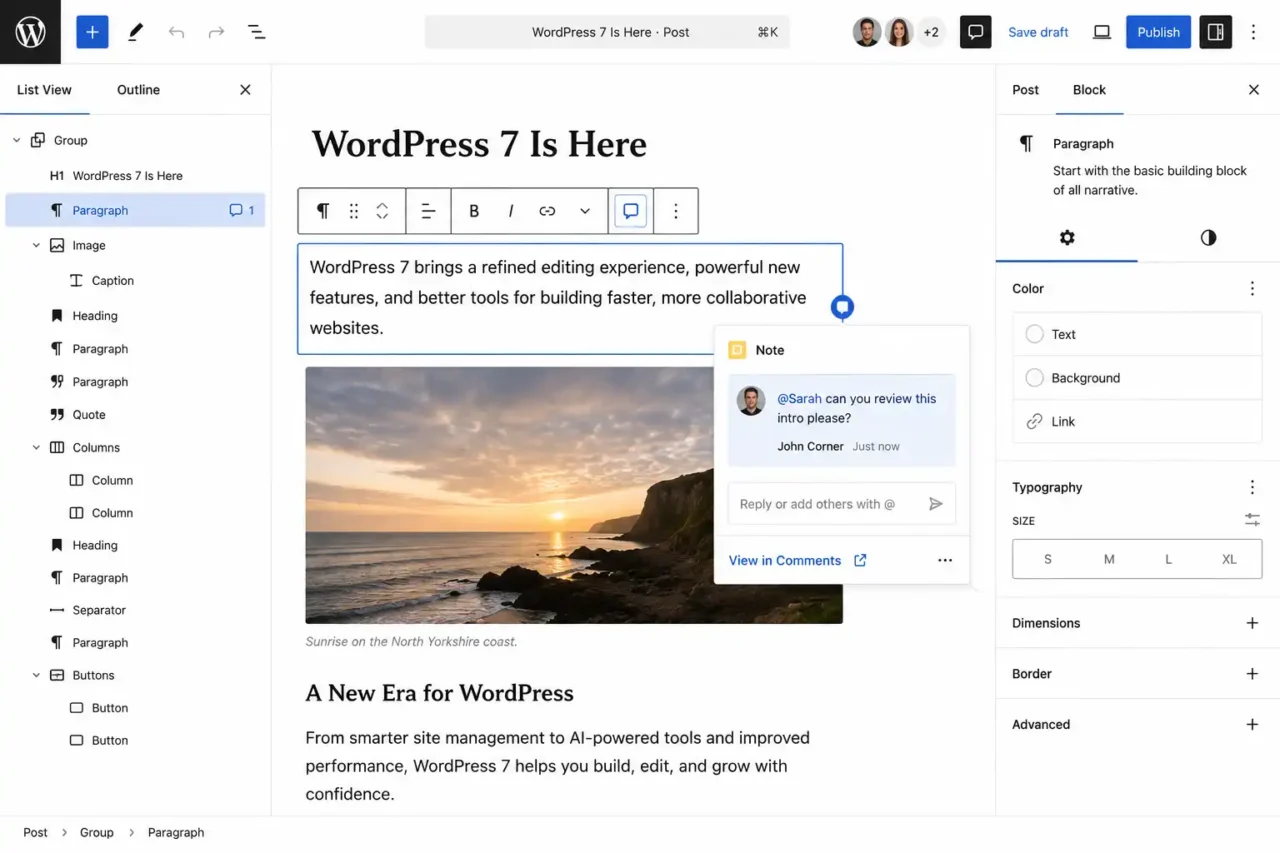
While real-time co-editing got pulled, block-level Notes made it through. This lets editors leave comments directly on specific blocks in a post, with @mentions, a Suggestions mode, and inline threaded feedback.
I've started using this with clients during content review. Instead of a client emailing me, "Can you change the second paragraph on the About page?" they can drop a Note directly on that block. It's not revolutionary, but it's the kind of friction-reducer that improves the working relationship over time. For any business where I write or manage content, this is immediately useful.
New blocks and native font management
WordPress 7 ships three new blocks that quietly kill the need for several utility plugins:
Breadcrumbs block. Native breadcrumb navigation without a plugin. Useful for any site with a structured content hierarchy: service pages, product categories, blog archives.
Icons block. Drop icons anywhere on a page. For years, I've been adding icon font plugins to client sites just to get a phone icon next to a contact number or a checkmark next to a service list. That's now a core block.
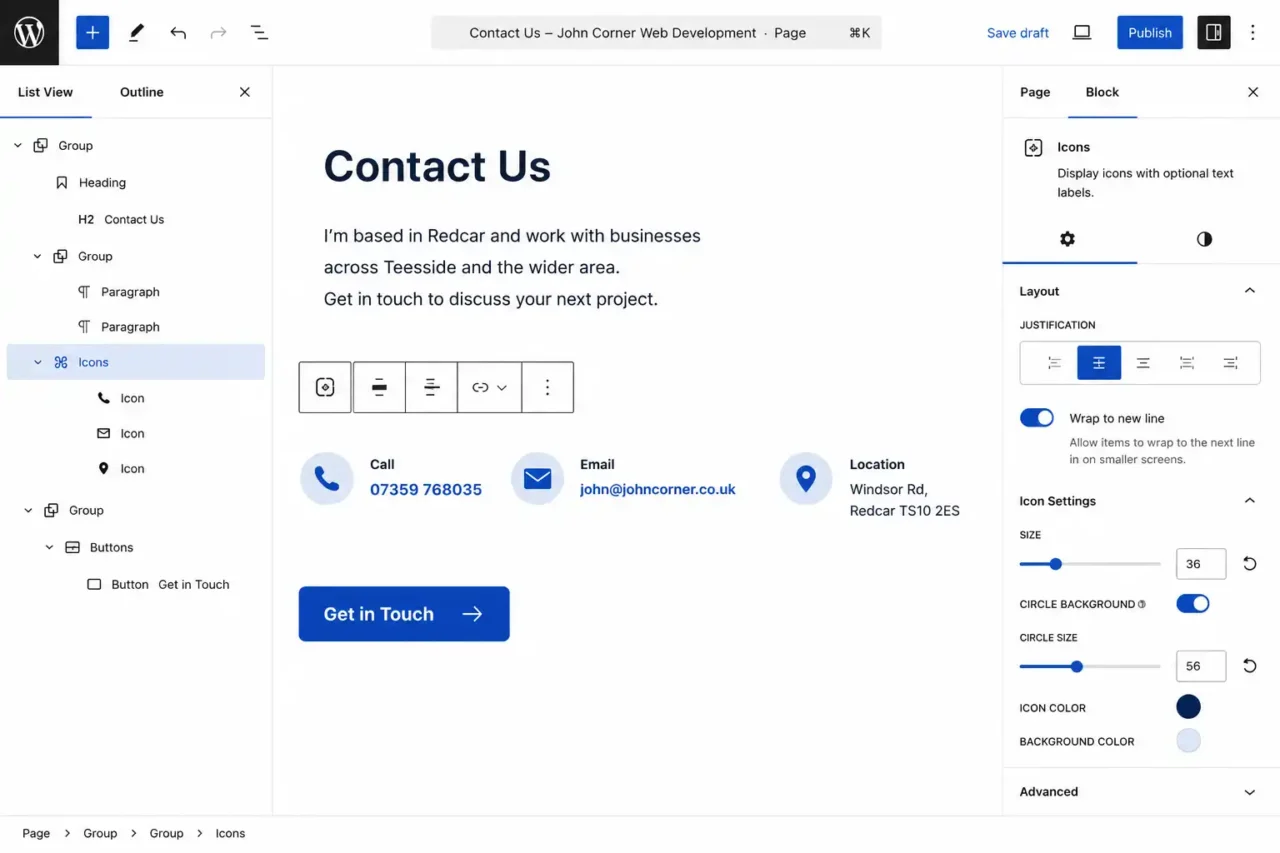
Responsive visibility controls. Show or hide any block based on screen size. A strip with desktop-specific calls to action, a mobile-only click-to-call button: previously needed either a plugin or custom CSS. Now it's a toggle in the block settings.
On top of that, the Font Library (previously only available in block themes) now works on every WordPress theme. You can manage client brand fonts directly from the editor, whatever theme they're running. For brand-conscious clients, this is genuinely useful.
Divi, Elementor, and WooCommerce: The Compatibility Honest Truth
This is the section most WordPress 7 posts skip. Let's fix that.
Divi
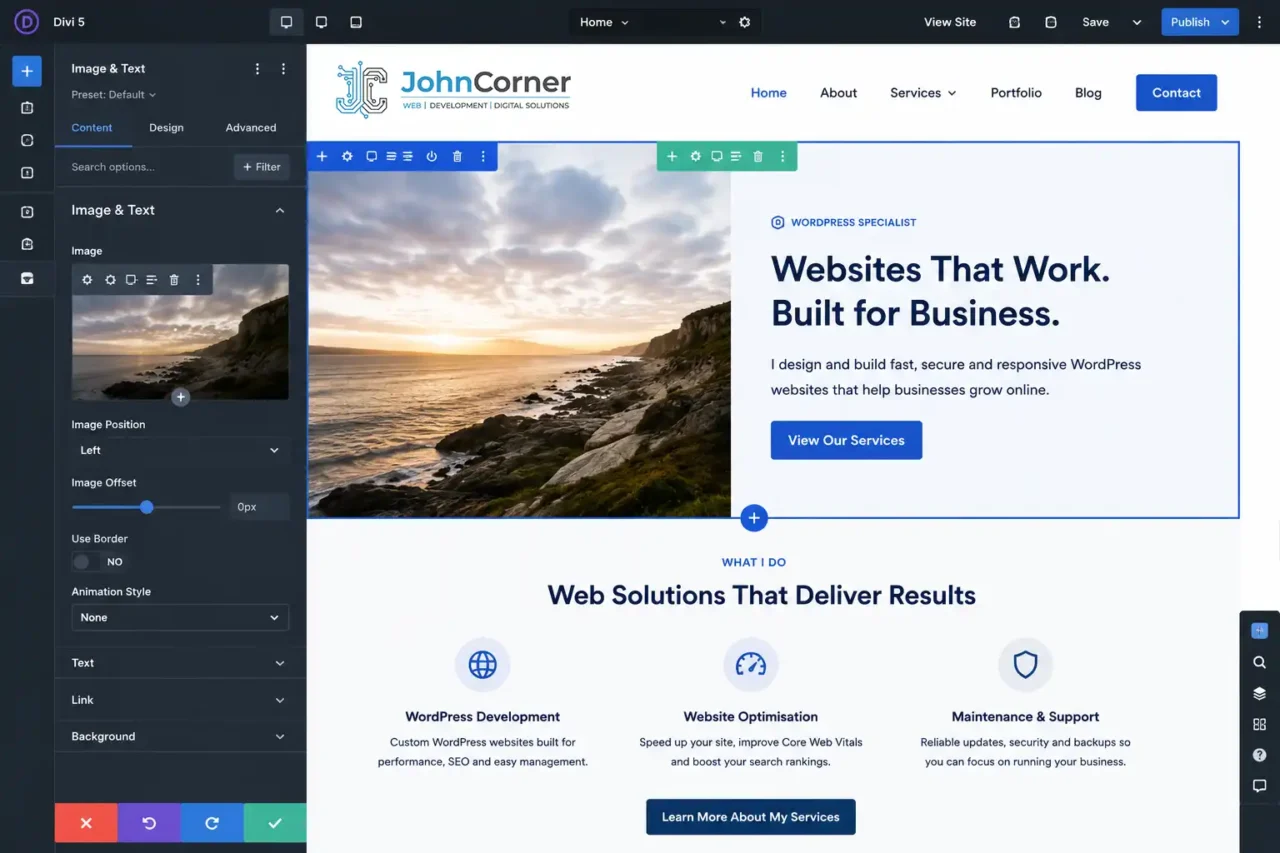
I use Divi on many client sites. Here's the practical situation: Divi 5.2.1 shipped specifically to prepare for WordPress 7, fixing known compatibility issues, including page creation flow problems with the Classic Editor integration. If you're on Divi 5.2.1 or later, you're in a reasonable position to test on staging.
Divi 5's Visual Builder runs inside its own iframe context, which means it's largely isolated from the DataViews changes to the admin list screens. The front-end building experience should be unaffected. Where you need to check: any Divi layouts that pull data through custom post type admin screens, and any admin-side customisations that hook into the old list tables.
If you're still running Divi 4 on any site, now is the time to have the upgrade conversation with your client. Divi 4 wasn't built for PHP 8.3, and PHP 8.3 is what WordPress 7 recommends. That combination is asking for trouble.
Elementor
Elementor 3.18 and above includes compatibility layers for the new WordPress architecture. The Template Library and Theme Builder work fine. The risk sits with third-party Elementor addons: the dozens of extension plugins that add widgets and modules. Each one needs to be checked individually. If a client site has 15 Elementor addons installed and four of them haven't been updated since 2024, those four need staging tests before anything goes live.
WooCommerce
Standard WooCommerce on a typical product/checkout setup: low risk. WooCommerce shipped compatibility updates ahead of the WordPress 7 launch. In testing, standard configurations passed without issues.
The risk area is specific: if a WooCommerce site uses custom order management plugins that modify the Orders admin screen (custom columns, custom statuses, custom bulk actions), those plugins interact directly with the list tables that DataViews just replaced. Those need explicit staging tests.
For the e-commerce clients I manage on Teesside, my rule is simple: WooCommerce sites wait for WordPress 7.0.1. The minor point release will catch any edge cases that only surface once the wider community starts updating. That usually comes within a fortnight of the main release.
How to Update to WordPress 7: My Actual Process
Not a generic checklist. This is what I actually do.
Step 1: Check the PHP version first.
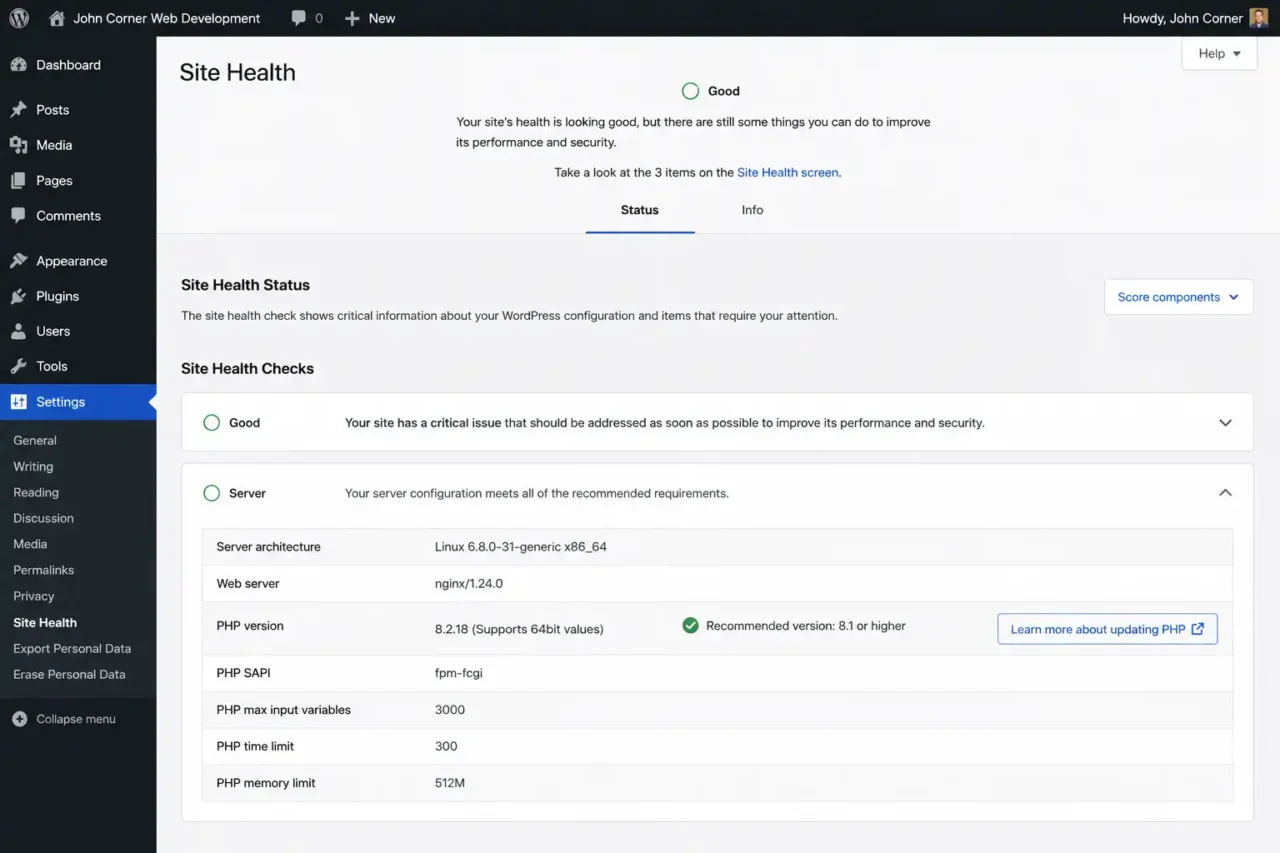
WordPress 7 requires PHP 7.4. PHP 8.3 is recommended. Anything below 7.4 won't receive the update at all; those sites stay on WordPress 6.9. Check Site Health > Info > Server in wp-admin. If a client site is on PHP 7.2 or 7.3, that's the first conversation: upgrade PHP on staging, test the full site, then upgrade WordPress.
Step 2: Backup. No exceptions. Full files and database. Not the hosting provider's automated backup that may or may not have run this week; a fresh manual backup, taken today, before anything else changes.
Step 3: Stage it. Every update I do for a client goes through staging first. If your host doesn't offer a one-click staging environment, LocalWP on your machine does the job. There's no legitimate reason to update a live business website directly in 2026.
Step 4: Plugin audit, focused. Don't check every plugin. Focus on three categories: anything that modifies admin list screens, any standalone AI plugins that maintain their own API keys, and page builders. Everything else (Yoast, ACF, Gravity Forms, WP Rocket) has almost certainly been updated already.
Step 5: Update in order. Plugins and themes first. Test. Then WordPress core. If you update everything simultaneously and something breaks, you're troubleshooting in the dark. Do it in sequence so you know exactly what caused what.
Step 6: Test what matters for that specific client. For a brochure site: homepage, contact form, key service pages. For a WooCommerce site: add to cart, checkout, order confirmation email, and any subscription flow. For a site with a client login area: member access, gated content, and account pages. Don't run a generic test; test what that specific business actually uses.
What's Coming in WordPress 7.1 and 7.2
Real-time co-editing is expected in WordPress 7.1, currently scheduled for 19 August 2026. For the first time, multiple editors will genuinely be able to work on the same post simultaneously: the Google Docs experience WordPress has been promising for two years.
WordPress 7.2 is expected around December 2026. WordPress is returning to its three-releases-per-year cadence after the compressed 2025 schedule.
If real-time collaboration is important to your workflow (you have a content team, a marketing agency managing your site, or multiple editors), it's worth knowing it's a few months away, not a few years.
FAQs About WordPress 7
Is WordPress 7 out now?
Yes. Released 20 May 2026. Available via Dashboard > Updates in your WordPress admin.
Does WordPress 7 include real-time collaboration?
No. It was removed two weeks before launch due to technical issues. Expected in WordPress 7.1 (August 2026).
What PHP version does WordPress 7 require?
Minimum PHP 7.4. Recommended PHP 8.3 or higher. Sites on PHP 7.2 or 7.3 will remain on the WordPress 6.9 branch and won't receive the update.
Will WordPress 7 break my Divi site?
Not if you're on Divi 5.2.1 or later. Update Divi before you update WordPress core, and test on staging. Divi 4 sites carry more risk and should be tested carefully.
Will WordPress 7 break my WooCommerce store?
Standard WooCommerce setups are fine. If you use custom order management plugins that modify the Orders admin screen, test those specifically on staging before updating live.
What is the AI Connectors screen?
A central screen at Settings > Connectors where you connect AI providers (OpenAI, Gemini, Anthropic Claude) once, and all compatible plugins share those credentials. It's infrastructure; you still need plugins that use the new AI system to actually get AI features.
Should I update to WordPress 7 right now?
For simple brochure sites with a clean plugin stack: yes, after testing on staging. For WooCommerce stores, membership sites, or complex plugin setups: wait 1 to 2 weeks for WordPress 7.0.1, which will catch any early edge-case bugs.
What is DataViews?
The new admin interface for Posts, Pages, and Media screens in WordPress 7. React-based, instant filtering, multiple view layouts, no full-page reloads. Your clients will notice it looks different. That's normal.
Will updating to WordPress 7 affect my SEO?
No direct SEO impact from the update itself. The performance improvements (faster block rendering, lower TTFB, client-side image processing) may have modest positive effects over time, but don't update expecting an overnight rankings change.
Do I need to set up the AI Connectors?
No. They're entirely optional. WordPress 7 works exactly like previous versions without any AI provider connected.
The Bottom Line
WordPress 7 is a genuine step forward. The admin feels modern for the first time in years. AI infrastructure is in place for where the ecosystem is heading. The Font Library, responsive block visibility, and native icons quietly remove the need for half a dozen utility plugins. And the real-time collaboration feature, when it does arrive in 7.1, will genuinely change how content teams work.
For local businesses on Teesside, whether you're a sole trader with a five-page brochure site or a growing e-commerce business, the update is worth doing. Just not in a rush, not without a backup, and not without a quick test in staging first.
If I manage your WordPress site, I'll be rolling out updates over the coming weeks, starting with the simplest sites and working through to the more complex builds. You'll get a message before anything changes on your site. If you have questions about what this means for your specific setup, you know where to find me.
Running a WordPress site in Teesside and not sure if it's update-ready? Get in touch and I'll take a look.